How to create a ZIP or 7z archive
The Compress tab turns any set of files or folders into an archive without installing anything. ZIP for compatibility, 7z for the smallest size and strong encryption, TAR.GZ/XZ/BZ2 for Linux, and single-file GZIP, XZ and BZIP2.
Steps
- 1
Add files or a folder
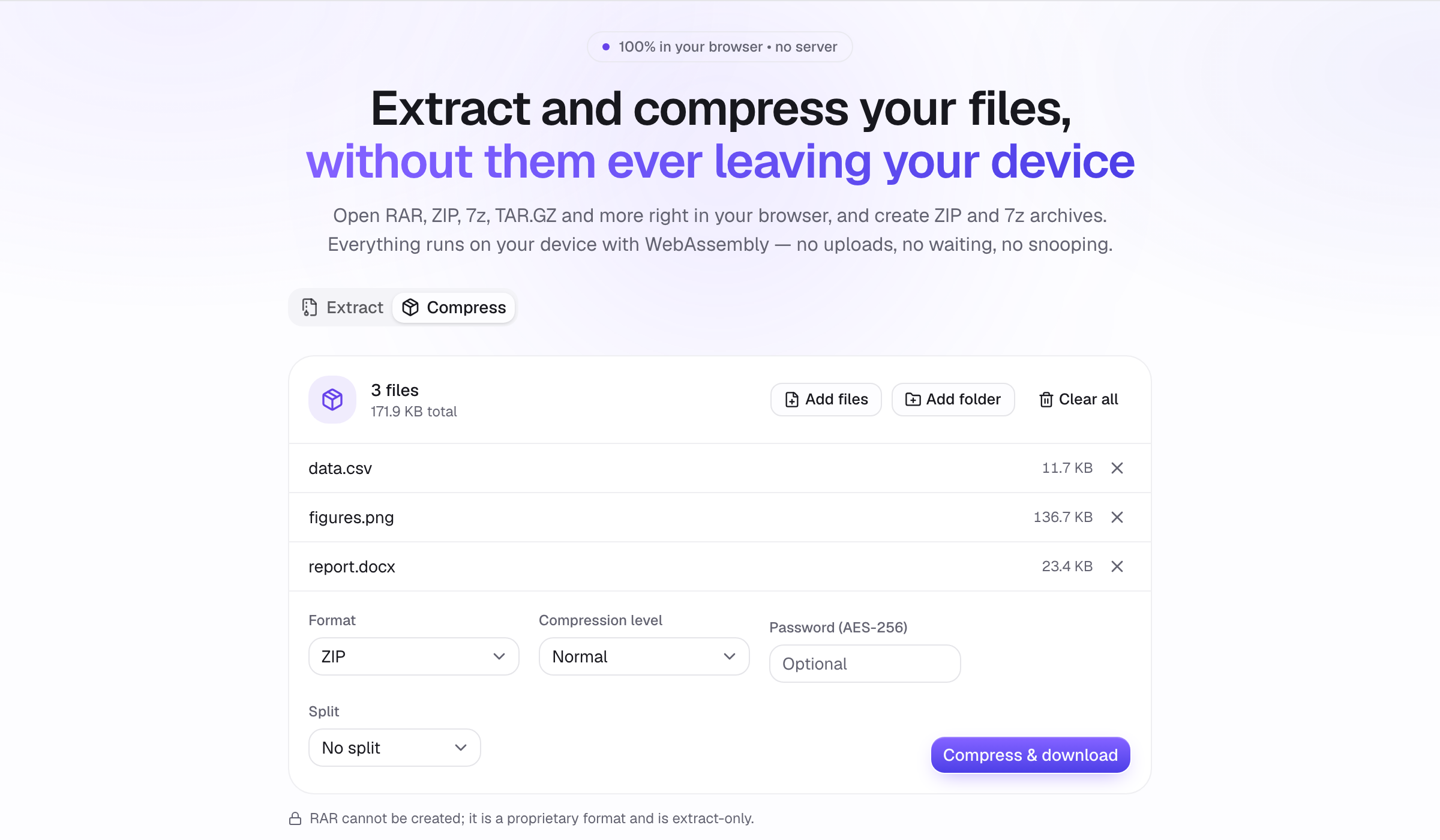
Switch to the Compress tab and drop files onto the area, or use Add files / Add folder. Folder structure is preserved inside the archive. You can keep adding; the list shows the total size.
- 2
Choose the format and options
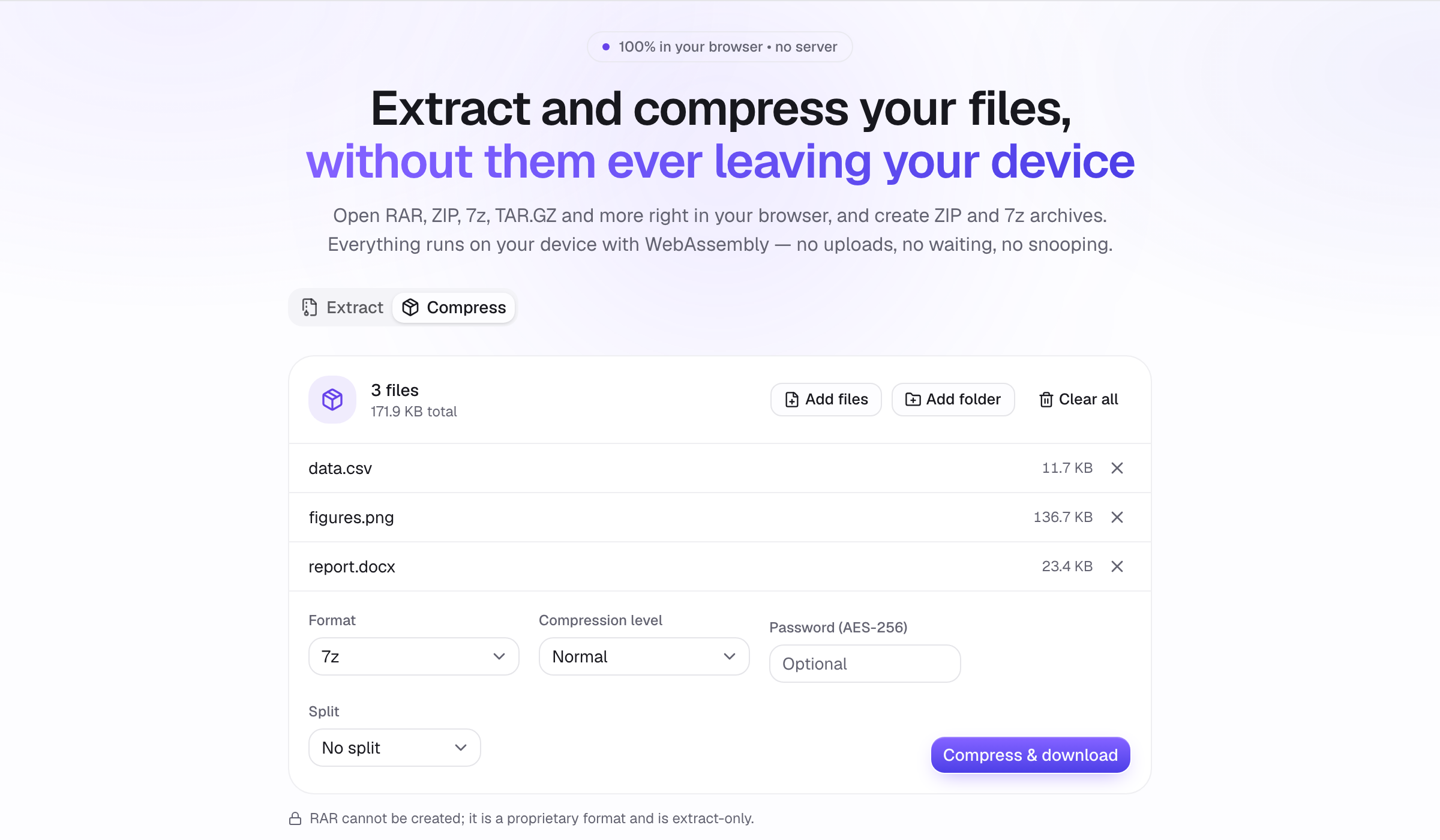
Pick the format from the dropdown. The level slider trades speed for size: 0 stores without compressing (best for photos and video), 9 is smallest for text. For ZIP and 7z you can set a password (always AES-256) and split the result into volumes of a chosen size.
- 3
Compress and download
Click Compress & download. Progress is shown per file, and the finished archive downloads with the name of the first file or folder. Split archives download as .001, .002… parts.
Tips
- Use 7z with a password when the contents are private: it encrypts file names too.
- Level 0 is instant and gives the same size as level 9 for media that is already compressed.
- GZIP, XZ and BZIP2 wrap exactly one file; use TAR.GZ for several.