How to preview files inside an archive without extracting
Most of the time you want to look, not extract. Haven Zip renders text, code, Markdown, images, PDF, audio and video straight from the archive in memory, so you can check what an attachment contains before anything touches your disk.
Steps
- 1
Open the archive and click a file name
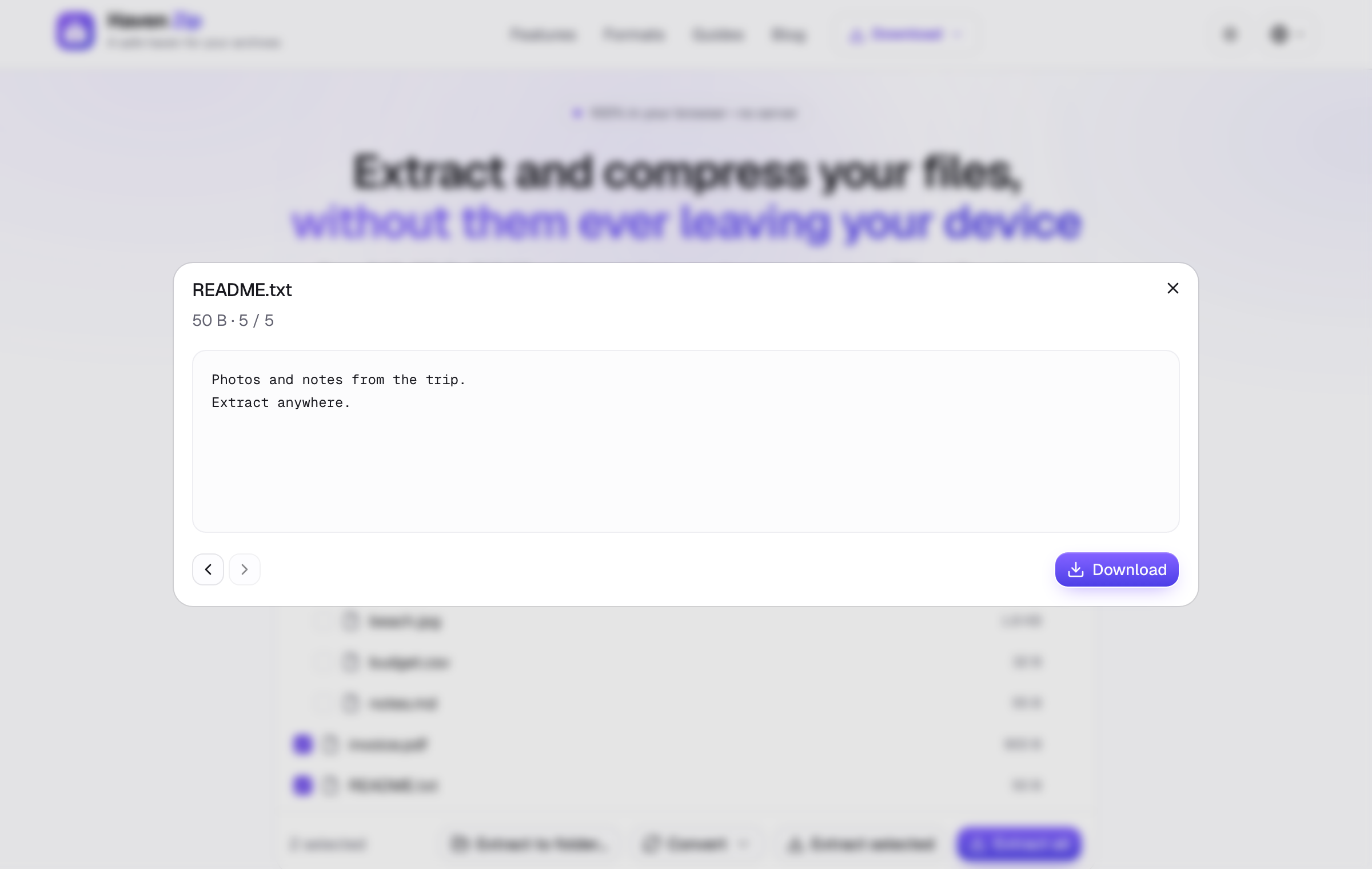
In the file tree, click the name (not the checkbox). A preview dialog opens with the content: syntax-highlighted code, rendered Markdown, images at their real size, PDFs with page navigation.
- 2
Step through files
Use the arrows or the keyboard to move to the previous and next file without closing the dialog. The Download button saves just that file.
- 3
Open a nested archive
Click a .zip, .rar or .7z inside the archive and it opens in place as a new tree; the breadcrumb at the top takes you back to the parent. Password-protected inner archives ask for their own password.
Tips
- Previews are read from memory; nothing is written to your Downloads until you click Download or Extract.
- Very large media files are streamed, so a preview starts before the whole file is decompressed.
- Unknown file types show a hex view of the first bytes, which is enough to spot a mislabeled executable.