How to open and extract an archive
Haven Zip opens ZIP, RAR, 7z, TAR.GZ and thirty other formats directly in the browser. Nothing is uploaded: the archive is read on your device and files are delivered as ordinary downloads. Here is the whole flow.
Steps
- 1
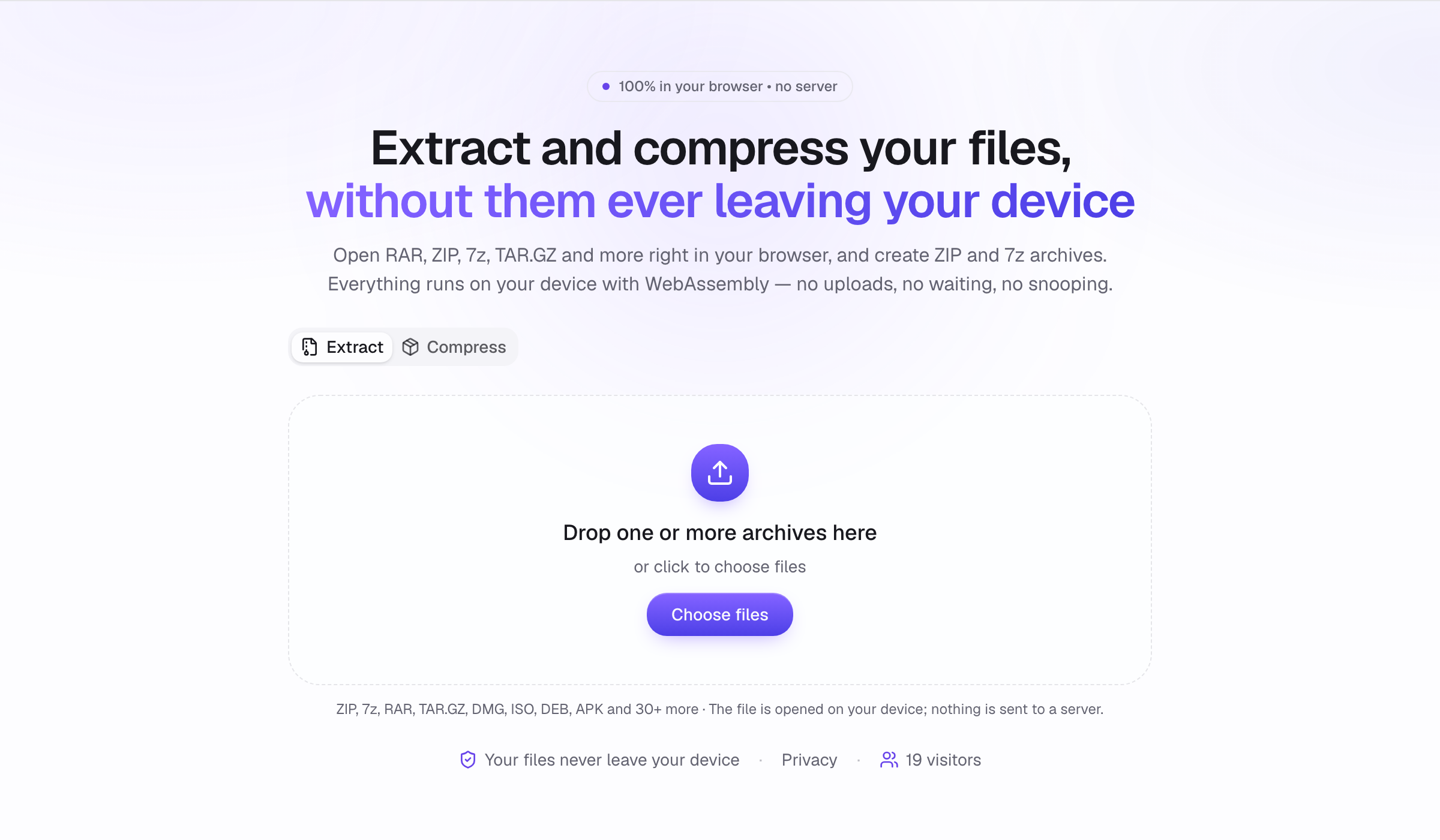
Drop the archive onto the page
Open Haven Zip and drag the file onto the dashed area, or click it to pick a file. The Extract tab is selected by default. Archives up to several gigabytes work; only the entries you extract are decompressed.
- 2
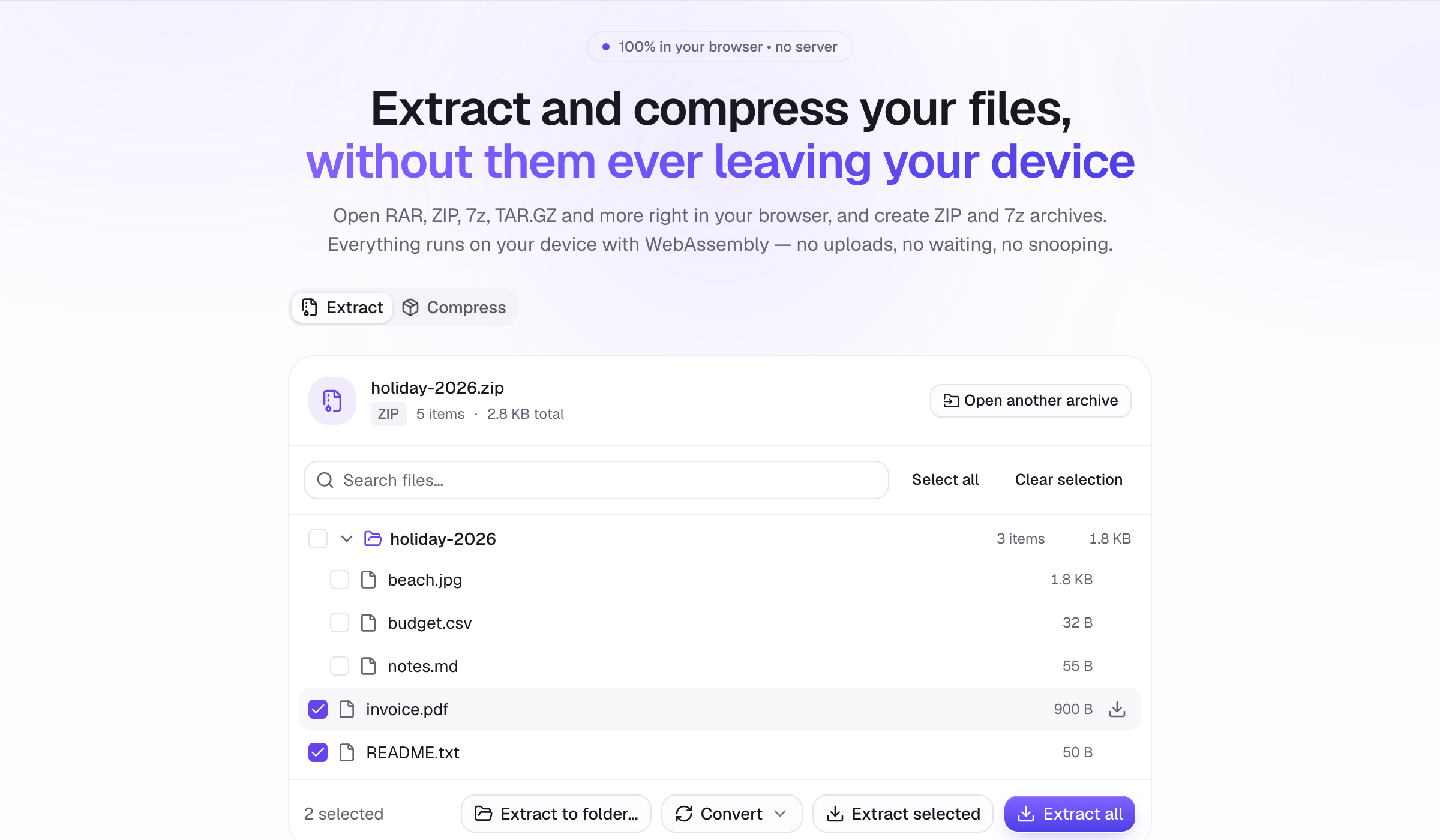
Browse the contents
The archive appears as a folder tree with names, dates and sizes. Click a folder to open it, click a file name to preview it (text, images, PDF, code and nested archives), and use the checkboxes to pick files. Password-protected archives ask for the password first.
- 3
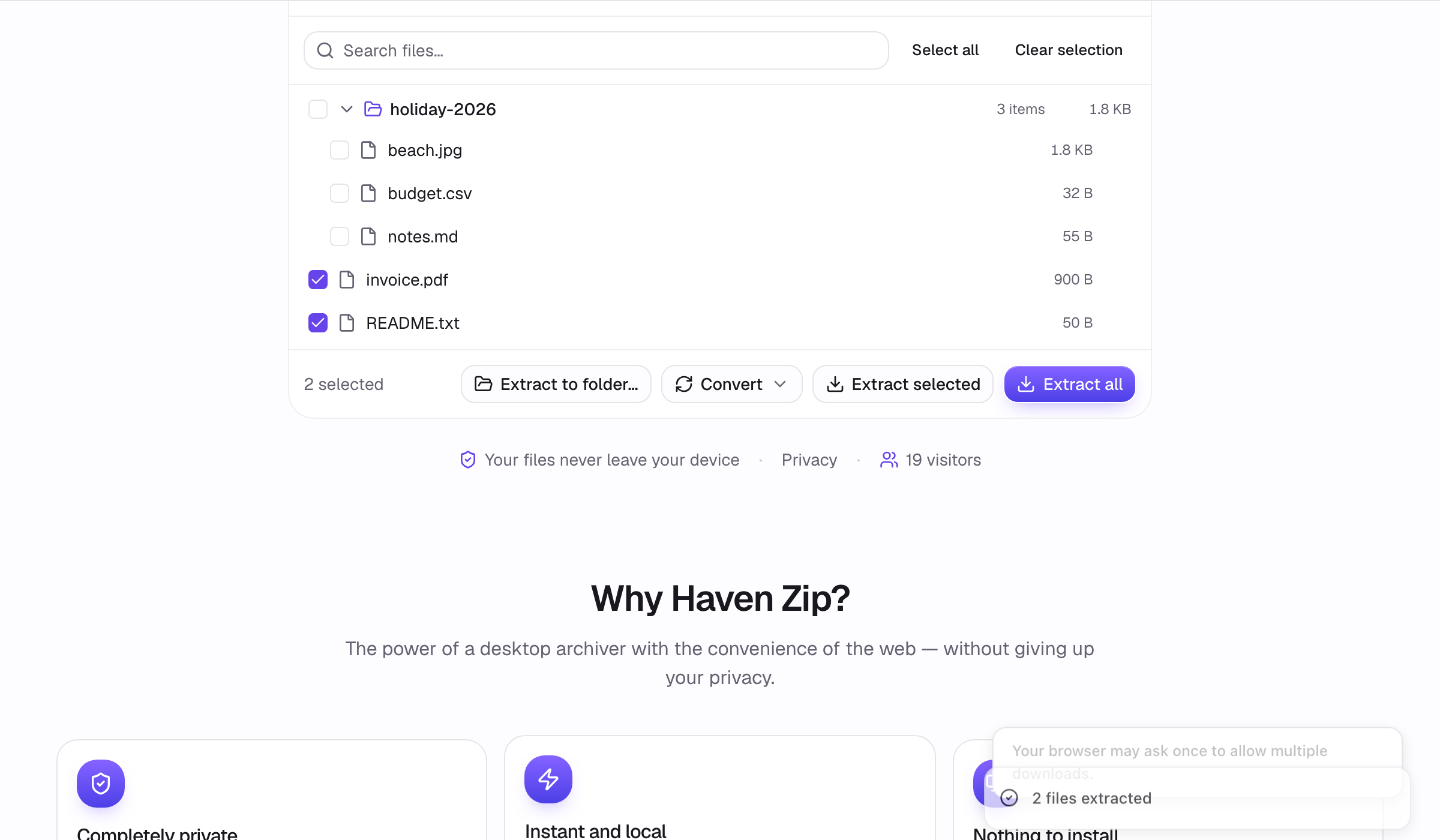
Extract
Click Extract all, or select files and click Extract selected. Each file downloads individually to your browser's download folder; Chrome asks once for permission to save several files. Past ten files Haven Zip asks you to confirm so it never floods your downloads.
- 4
Optional: extract straight into a folder
On Chrome, Edge and Opera the Extract to folder… button lets you pick a destination once; files and subfolders are written there directly with their structure intact. If your browser cannot show the folder dialog, Haven Zip falls back to downloads automatically.
Tips
- Click the small download icon on a row to save just that one file.
- A nested archive (a ZIP inside a ZIP) opens in place when you click it; use the breadcrumb to go back.
- Everything works offline once the page has loaded once.