How to install Haven Zip as an app
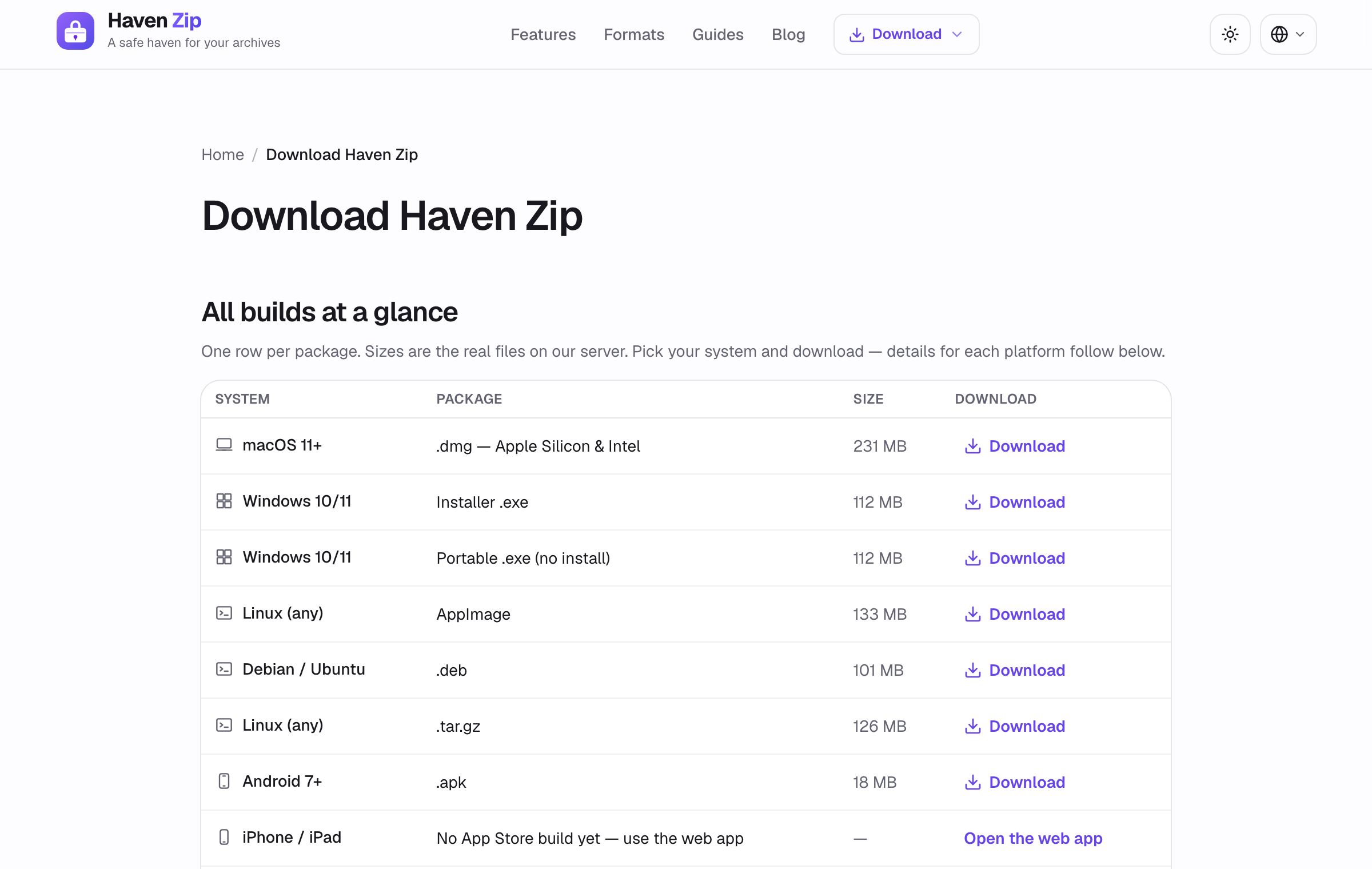
Every edition of Haven Zip is the same code doing the same work on your device; the difference is how it fits into your system: a Dock or taskbar icon, double-clicking an archive, right-clicking a link in the browser. Pick what suits you from the Download page.
Steps
- 1
Install from the browser (all systems)
On Chrome, Edge or Opera, open Haven Zip and click the install icon at the right end of the address bar (or the browser menu → Install Haven Zip). On iOS Safari use Share → Add to Home Screen. The app opens in its own window and works offline.
- 2
Desktop app for Windows, macOS and Linux
Download the installer for your system from the Download page. The desktop app registers itself for archive files, so double-clicking a .zip, .rar or .7z opens it in Haven Zip, and extracted files are saved straight into your Downloads folder.
- 3
Android app
Download the APK from the Download page and allow installation from your browser when Android asks (Play Store listing to follow). Archives can then be shared to Haven Zip from any app, and extracted files are saved to your Downloads.
- 4
Browser extension
Install the extension for Chrome, Edge, Opera or Firefox. It adds Open in Haven Zip to the right-click menu of archive links and a toolbar popup with quick actions; the file bytes travel inside your browser only.
Tips
- All editions share one version number; the About page shows it.
- Uninstalling removes only the app. It never created an account or stored your files anywhere.
- The web version at havenzip.com is always the newest; installed apps follow within a release.